Use this link to get 70% off the Automate the Boring Stuff online video course.
Support me on Patreon
This book would not have been possible without the exceptional work of the No Starch Press team. Thanks to my publisher, Bill Pollock; thanks to my editors, Laurel Chun, Jan Cash, and Tyler Ortman, for their incredible help throughout the process; thanks to my technical editor Ari Lacenski for her thorough review; and thanks to Josh Ellingson for yet another great cover.

When I first played video games as a kid, I was hooked. But I didn’t just want to play video games, I wanted to make them. I found a book like this one that taught me how to write my first programs and games. It was fun and easy. The first games I made were like the ones in this book. They weren’t as fancy as the Nintendo games my parents bought for me, but they were games I had made myself.
Now, as an adult, I still have fun programming and I get paid for it. But even if you don’t want to become a computer programmer, programming is a useful and fun skill to have. It trains your brain to think logically, make plans, and reconsider your ideas whenever you find mistakes in your code.
Many programming books for beginners fall into two categories. The first category includes books that don’t teach programming so much as “game creation software” or languages that simplify so much that what is taught is no longer programming. The other category consists of books that teach programming like a mathematics textbook—all principles and concepts, with few real-life applications for the reader. This book takes a different approach and teaches you how to program by making video games. I show the source code for the games right up front and explain programming principles from the examples. This approach was the key for me when I was learning to program. The more I learned how other people’s programs worked, the more ideas I had for my own programs.
All you’ll need is a computer, some free software called the Python interpreter, and this book. Once you learn how to create the games in this book, you’ll be able to develop games on your own.
Computers are incredible machines, and learning to program them isn’t as hard as people think. A computer program is a bunch of instructions that the computer can understand, just like a storybook is a bunch of sentences that the reader can understand. To instruct a computer, you write a program in a language the computer understands. This book will teach you a programming language called Python. There are many other programming languages you can learn, like BASIC, Java, JavaScript, PHP, and C++.
When I was a kid, I learned BASIC, but newer programming languages like Python are even easier to learn. Python is also used by professional programmers in their work and when programming for fun. Plus it’s totally free to install and use—you’ll just need an internet connection to download it.
Because video games are nothing but computer programs, they are also made up of instructions. The games you’ll create from this book seem simple compared to the games for Xbox, PlayStation, or Nintendo. These games don’t have fancy graphics because they’re meant to teach you coding basics. They’re purposely simple so you can focus on learning to program. Games don’t have to be complicated to be fun!
Programming isn’t hard, but it is hard to find materials that teach you to do interesting things with programming. Other computer books go over many topics most new coders don’t need. This book will teach you how to program your own games; you’ll learn a useful skill and have fun games to show for it! This book is for:
In most of the chapters in this book, a single new game project is introduced and explained. A few of the chapters cover additional useful topics, like debugging. New programming concepts are explained as games make use of them, and the chapters are meant to be read in order. Here’s a brief rundown of what you’ll find in each chapter:
pygame module and shows you how to use it to draw 2D graphics.pygame.pygame games by adding sounds and images.Most chapters in this book will begin with a sample run of the chapter’s featured program. This sample run shows you what the program looks like when you run it. The parts the user types are shown in bold.
I recommend that you enter the code for each program into IDLE’s file editor yourself rather than downloading or copying and pasting it. You’ll remember more if you take the time to type the code.
When typing the source code from this book, do not type the line numbers at the start of each line. For example, if you saw the following line of code, you would not need to type the 9. on the left side, or the one space immediately following it:
9. number = random.randint(1, 20)You’d enter only this:
number = random.randint(1, 20)Those numbers are there just so this book can refer to specific lines in the program. They are not part of the actual program’s source code.
Aside from the line numbers, enter the code exactly as it appears in this book. Notice that some of the lines of code are indented by four or eight (or more) spaces. The spaces at the beginning of the line change how Python interprets instructions, so they are very important to include.
Let’s look at an example. The indented spaces here are marked with black circles (•) so you can see them.
while guesses < 10:
••••if number == 42:
••••••••print('Hello')
The first line is not indented, the second line is indented four spaces, and the third line is indented eight spaces. Although the examples in this book don’t have black circles to mark the spaces, each character in IDLE is the same width, so you can count the number of spaces by counting the number of characters on the line above or below.
Some code instructions are too long to fit on one line in the book and will wrap around to the next line. But the line will fit on your computer screen, so type it all on one line without pressing ENTER. You can tell when a new instruction starts by looking at the line numbers on the left. This example has only two instructions:
1. print('This is the first instruction!xxxxxxxxxxxxxxxxxxxxxxxxxxxxxxxxxxxxxx
     xxxxxxxxxxxx')
2. print('This is the second instruction, not the third instruction.')
The first instruction wraps around to a second line on the page, but the second line does not have a line number, so you can see that it’s still line 1 of the code.
You’ll need to install software called the Python interpreter. The interpreter program understands the instructions you write in Python. I’ll refer to the Python interpreter software as just Python from now on.
In this section, I’ll show you how to download and install Python 3 for Windows, macOS, or Ubuntu. The programs in this book run on any recent version of Python 3, so download the latest version you can. The pygame module, which is used in Chapters 17 to 21, doesn’t come with Python; you’ll install it separately at the start of Chapter 17.
On Windows, go to https://www.python.org/downloads/ and click the button that downloads the latest version of Python 3. The website detects that you’re running Windows, so this button gives you the Windows installer. Double-click the downloaded .exe file and then follow the instructions the installer displays on the screen, as listed here:
On macOS, go to https://www.python.org/downloads/ and click the button that downloads the latest version of Python 3, and then double-click the downloaded .pkg file. Follow the instructions the installer displays on the screen, as listed here:
If you’re running Ubuntu, Python 3 is already installed, but IDLE isn’t. To install IDLE, open a terminal window and enter the following command:
sudo apt install idle3Enter your password when prompted. You can also search for idle in the Ubuntu App Center and install it from there.
If the above steps do not work, you can find alternative Python install instructions at https://www.nostarch.com/inventwithpython/.
IDLE stands for Integrated Development and Learning Environment. IDLE is like a word processor for writing Python programs. Starting IDLE is different on each operating system:
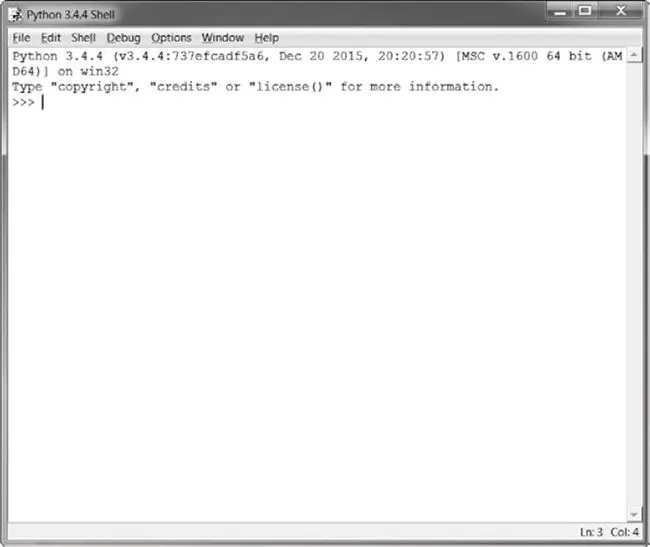
IDLE, and select IDLE (Python GUI).idle3. You may also be able to click Applications at the top of the screen. Then click Programming and IDLE 3.The window that appears when you first run IDLE is the interactive shell, as shown in Figure 1. You can enter Python instructions into the interactive shell at the >>> prompt and Python will perform them. After the computer performs the instructions, a new >>> prompt will wait for your next instruction.
You can find the source code files and other resources for this book at https://www.nostarch.com/inventwithpython/. If you want to ask programming questions related to this book, visit https://reddit.com/r/inventwithpython/, or you can email your programming questions to me at [email protected].
Before you ask any questions, make sure you do the following:
Keep in mind that the better you phrase your programming questions, the better others will be able to help you. When asking programming questions, do the following:
Now that you know how to ask for help, you’ll be learning to program your own computer games in no time!
Next: Chapter 1 - The Interactive Shell